Microsoft 365 Defender
This guide explains how to integrate Microsoft 365 Defender (Microsoft Defender XDR) with RedCarbon.
Overview
The Microsoft 365 Defender integration allows RedCarbon to ingest incidents and alerts from the unified Microsoft XDR platform, including Defender for Endpoint, Identity, and Office 365.
- Vendor Documentation: Microsoft Graph security API
The connector talks exclusively to Microsoft Graph (https://graph.microsoft.com/v1.0) using an app-only OAuth2 client credentials flow. No other Microsoft host is contacted.
API Endpoints Used
Authentication
| Method | Endpoint |
|---|---|
| POST | https://login.microsoftonline.com/{tenantId}/oauth2/v2.0/token |
Scope https://graph.microsoft.com/.default, grant type client_credentials (app-only, no signed-in user).
Microsoft Graph — base https://graph.microsoft.com/v1.0
| Method | Endpoint | When it is called |
|---|---|---|
| GET | /security/incidents?$top=&$skip=&$expand=alerts&$filter= | Ingestion when the source is configured for incidents (alerts expanded) |
| PATCH | /security/incidents/{incidentId} | Incident mirroring / closure (status: resolved plus resolvingComment) |
| GET | /security/alerts_v2?$top=&$skip=&$filter= | Ingestion when the source is configured for alerts |
| PATCH | /security/alerts_v2/{alertId} | Alert mirroring / closure (status: resolved) |
| POST | /security/runHuntingQuery | Alert enrichment for alerts carrying additionalData.Query, and on-demand hunting |
Enrichment queries are sent verbatim with | take 10 appended, so an enriched alert carries at most 10 result rows. A failed enrichment query is logged and does not fail the ingestion of the incident.
Configuration
To configure the integration, you need to register an application in Azure Active Directory (Entra ID) and grant it permissions to access Microsoft 365 Defender APIs.
Step 1: Register an Application
- Log in to the Azure Portal with an account that has the Global Administrator role.
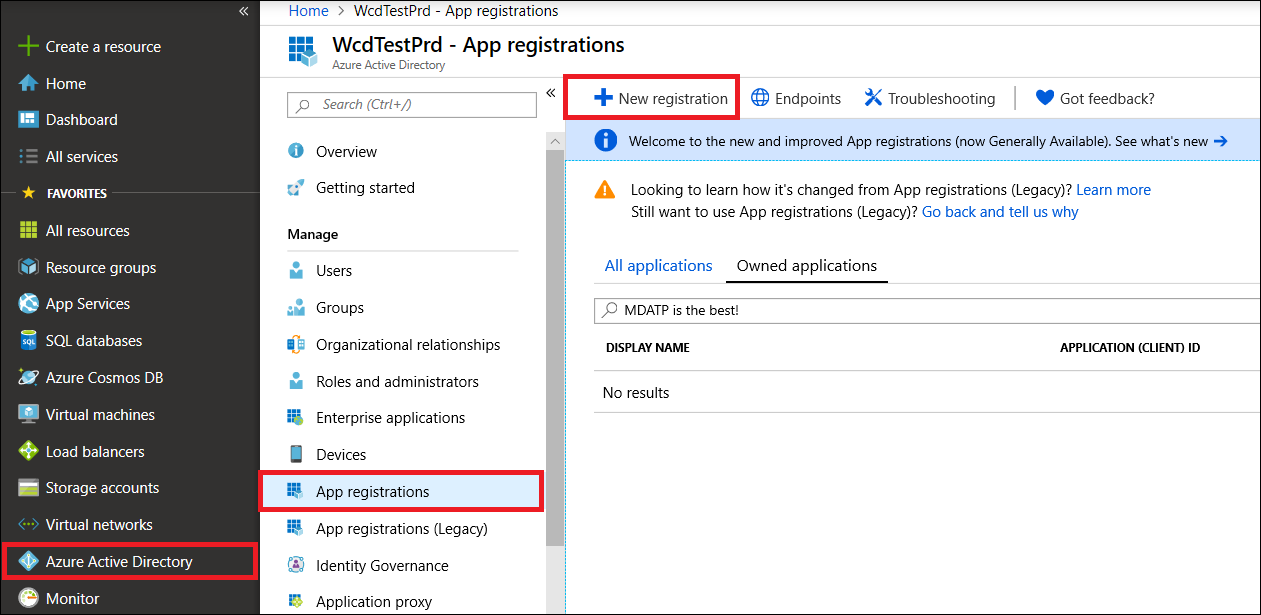
- Navigate to Azure Active Directory > App registrations > New registration.
- Enter a name (e.g.,
RedCarbon-Defender). - Click Register.
Step 2: Grant API Permissions
-
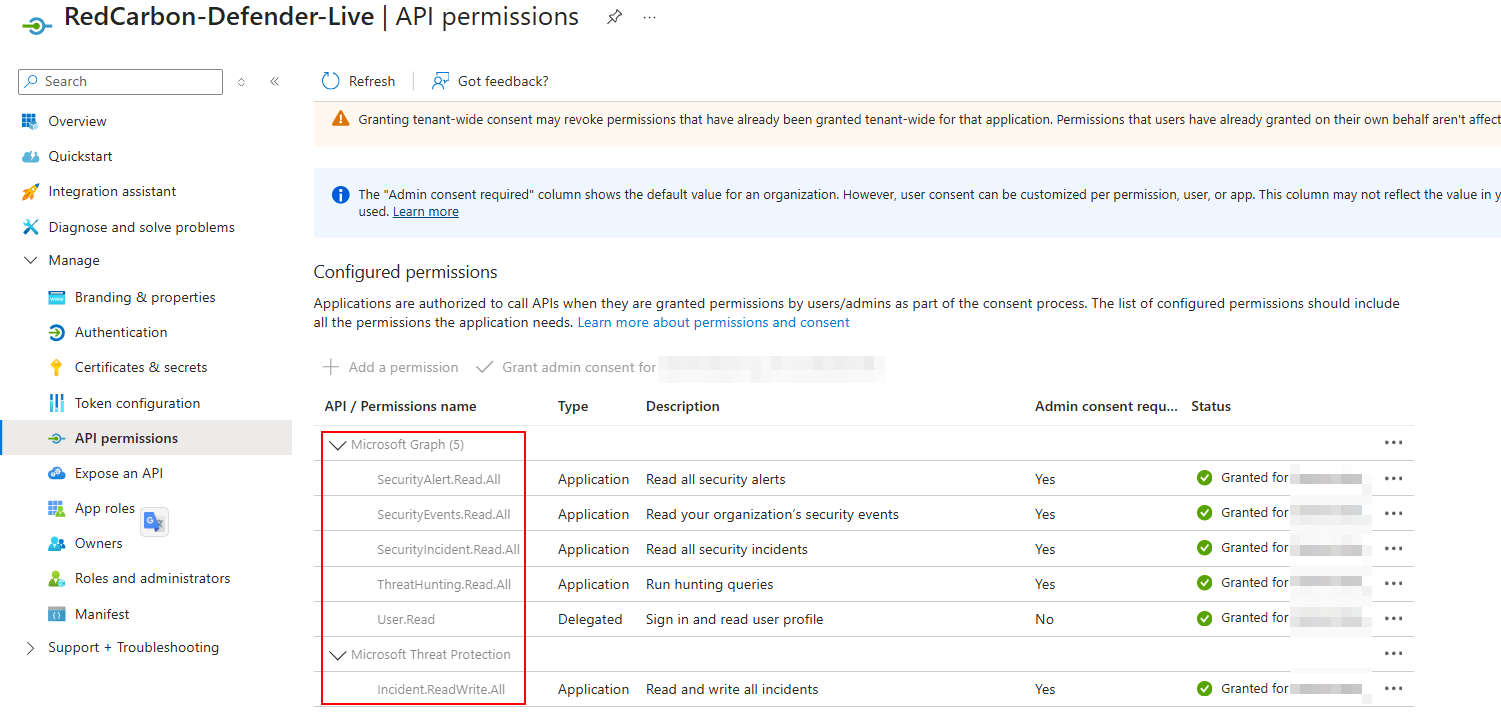
On the application page, select API Permissions.
-
Click Add permissions and add the following permissions.
-
Select Microsoft Graph > Application permissions (the connector runs app-only; delegated permissions are not used).
-
Add the following Microsoft Graph application permissions:
Permission Covers Required for SecurityIncident.ReadWrite.AllGETandPATCHon/security/incidentsIncident ingestion and ticket mirroring back to Defender. SecurityIncident.Read.Allis enough if incident closure from RedCarbon is not needed.SecurityAlert.ReadWrite.AllGETandPATCHon/security/alerts_v2Alert ingestion and alert closure. SecurityAlert.Read.Allis enough if alert closure from RedCarbon is not needed.ThreatHunting.Read.AllPOST /security/runHuntingQueryAlert enrichment with KQL hunting queries and on-demand hunting from the RedCarbon platform. SecurityIncident.*also covers the alerts returned through$expand=alertson incidents, but it does not replaceSecurityAlert.*when the source ingests alerts directly (Productset toalerts).No permission under Microsoft Threat Protection (the legacy
api.security.microsoft.comAPI) is required: the connector no longer uses that API. -
Important: Click Grant admin consent for [Organization Name] to activate the permissions.

Step 3: Create a Client Secret
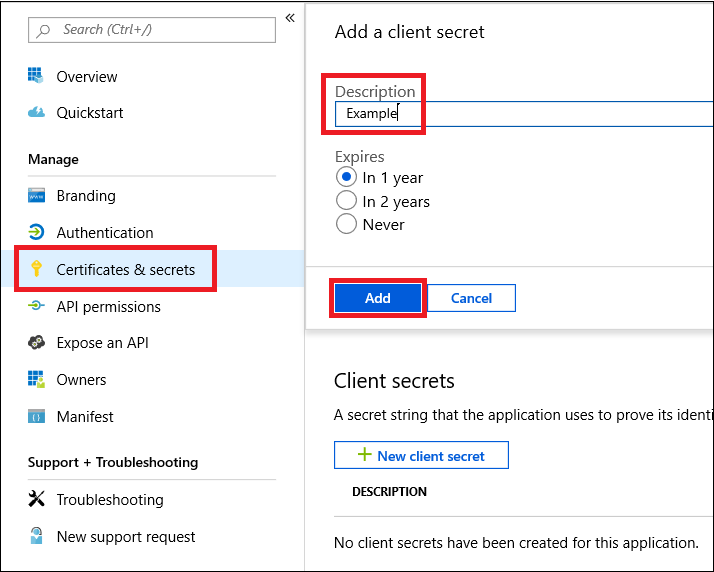
- Navigate to Certificates & secrets.
- Click New client secret.
- Add a description and expiration period.
- Click Add.
- Copy the Secret Value immediately.
Step 4: Gather Required IDs
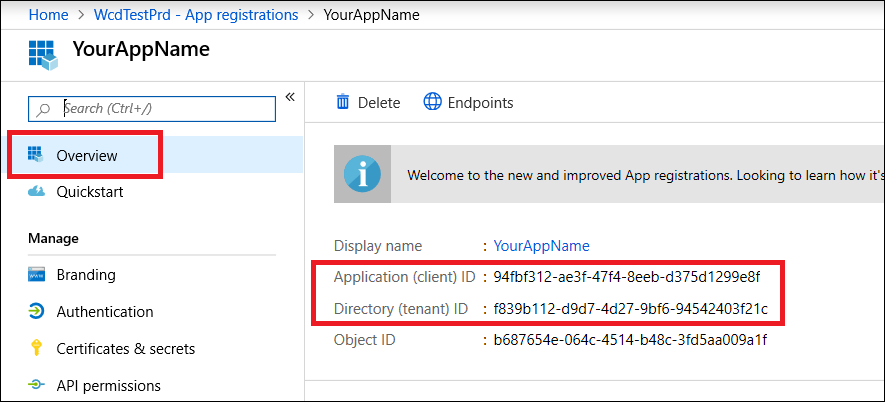
From the Overview page of your application, copy:
- Application (Client) ID
- Directory (Tenant) ID
Step 5: Configure RedCarbon
-
Log in to the RedCarbon Dashboard.
-
Navigate to the customer's Integrations page.
-
Select Microsoft 365 Defender.
-
Paste the Tenant ID, Client ID, and Client Secret.
-
Configure the optional ingestion settings:
Field Default Description Product Incidents Set to alertsto ingest standalone alerts instead of incidents.Product Filters All sources Restrict ingestion to specific service sources. In incident mode, drops incidents whose alerts don't match any listed source. In alert mode, filters directly via an OData query. Valid service sources for Product Filters:
microsoftDefenderForEndpointmicrosoftDefenderForIdentitymicrosoftDefenderForCloudAppsmicrosoftDefenderForOffice365microsoft365DefenderazureAdIdentityProtectionmicrosoftAppGovernancedataLossPreventionmicrosoftDefenderForCloudmicrosoftSentinelmicrosoftThreatIntelligence
-
Click Save and then Test.
Severity Mapping
| Original Severity | RedCarbon Score |
|---|---|
| Informational | 0 |
| Unspecified | 0 |
| Low | 10 |
| Medium | 40 |
| High | 70 |
| Critical | 90 |
Any other value maps to 40.