Customers
This article explains how to create and manage customers in RedCarbon.
Overview
Customers represent the organizations or clients that you manage within RedCarbon. Each customer can have their own users, integrations, and cases.
Creating a Customer
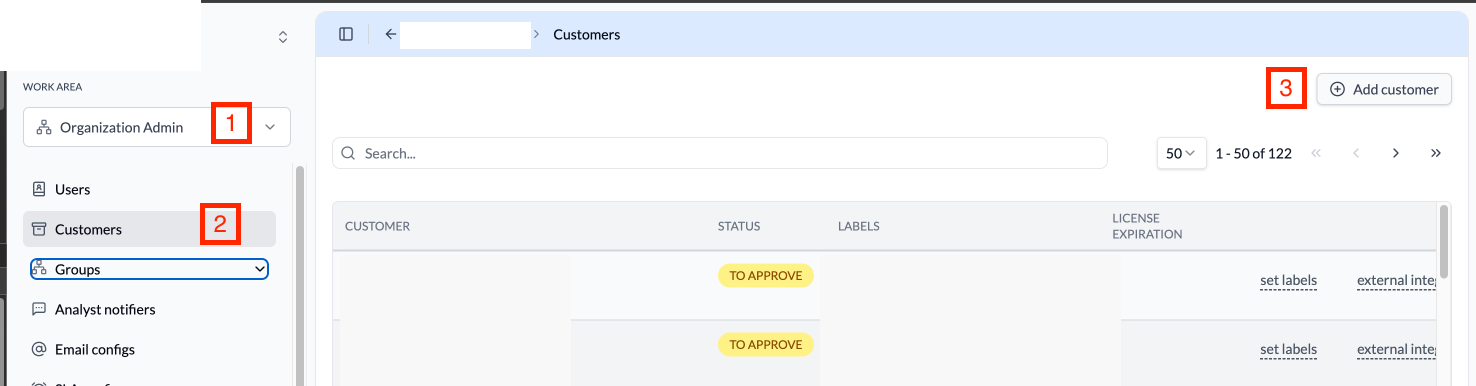
The Customers page shows all configured customers with their status, labels, and license expiration. To create a new customer:
- Navigate to
Organization Adminin the sidebar. - Click on
Customers. - Click
Add customerto create a new customer.
Once created, the customer will have a TO APPROVE status. To activate the customer, send an activation request to sales@redcarbon.ai.
Remember to add the customer to a group so that users can view it. See Groups for more information on managing groups.
Managing Customers
Editing a Customer
To modify an existing customer:
- Navigate to
Organization Admin>Customers. - Find the customer you want to modify.
- Click on the customer name to open the details.
From the customer details page, you can manage:
- Name and Description: Update the customer's display name and description.
- Logo: Upload or change the customer's logo.
- Integrations: Configure integrations for the customer (see Integrations for more information).
- External Integrations: Manage external integration connections.
- Agents: Configure agents associated with the customer.
- API Key: Generate or regenerate the customer's API key.
- Ignore Rules: Manage ignored cases to filter out unwanted alerts. See the Ignore Rules guide for full syntax and worked examples.
Setting Labels (Advanced)
Labels allow you to automatically associate customers with groups based on metadata labels, enabling dynamic group membership without manual configuration. To set labels:
- Navigate to
Organization Admin>Customers. - Find the customer you want to label.
- Click
set labelsnext to the customer. - Add or remove labels as needed.
- Click
Saveto apply the labels.
Customer Status
Customers can have the following statuses:
| Status | Description |
|---|---|
| TO APPROVE | Customer is pending approval |
| ACTIVE | Customer is active and operational |
| ARCHIVED | Customer is no longer active |
Best Practices
- Use Descriptive Names: Name customers clearly to identify them easily.
- Set Labels: Use labels to categorize customers for easier filtering.
- Monitor License Expiration: Keep track of license expiration dates to ensure continuity of service.