Cynet 360
This guide explains how to integrate Cynet 360 with RedCarbon.
Overview
The Cynet 360 integration allows RedCarbon to ingest alerts and scan information from the Cynet platform.
- Vendor Documentation: Cynet API Documentation
Configuration
To configure the integration, you need to create an API User in the Cynet console.
Step 1: Create an API User
- Log in to the Cynet console.
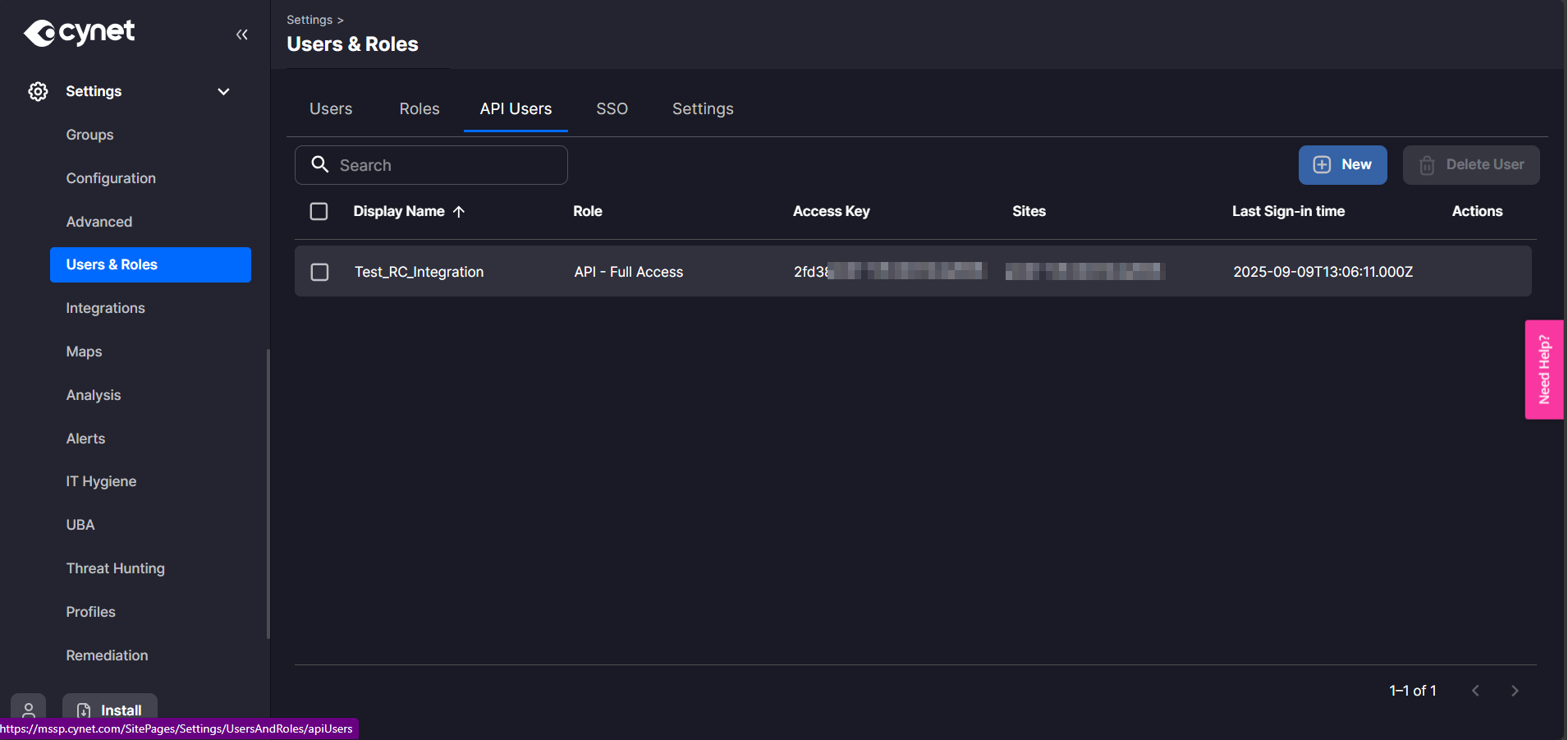
- Navigate to Settings > Users & Roles > API Users.
- Click New.
Step 2: Configure Permissions
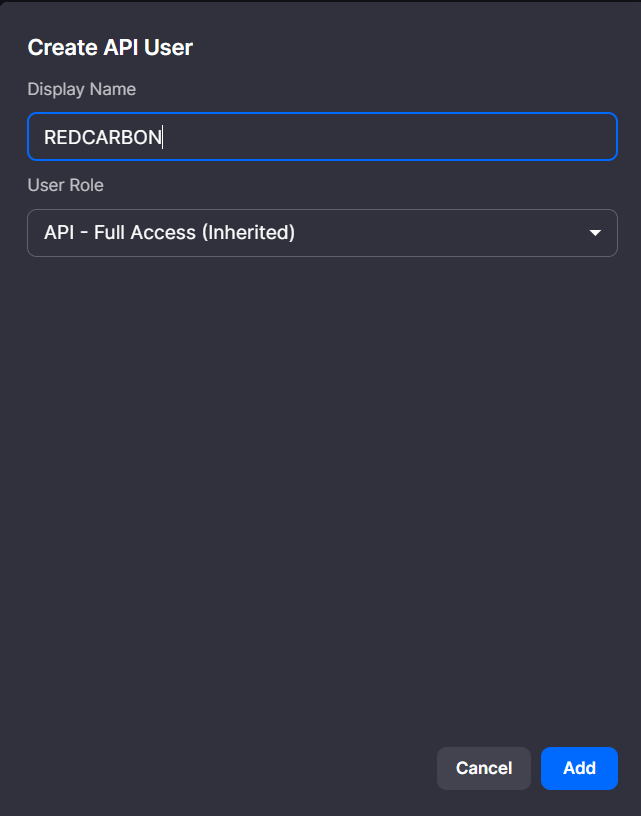
- Enter a Username for the API user.
- Select Full Access for permissions (or granular permissions if available).
- Click Save.
Step 3: Copy Credentials
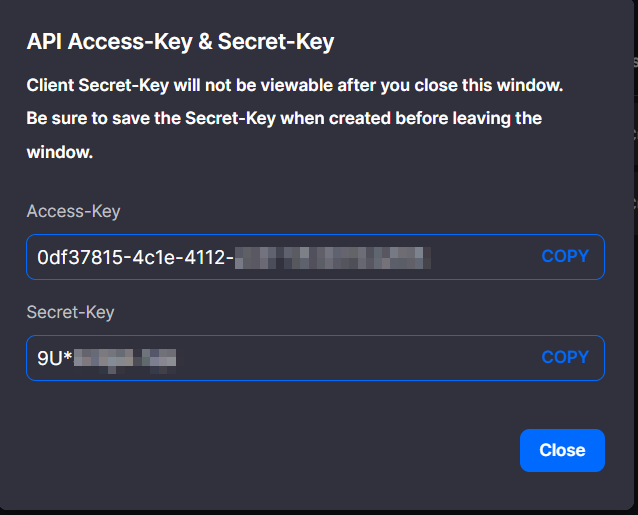
Once the user is created, copy the following credentials:
- Access Key
- Secret Key
Step 4: Obtain Client ID
Note: To obtain your Client ID and Tenant URL, you may need to contact Cynet Support or check your onboarding email.
Step 5: Configure RedCarbon
- Log in to the RedCarbon Dashboard.
- Navigate to the customer's Integrations page.
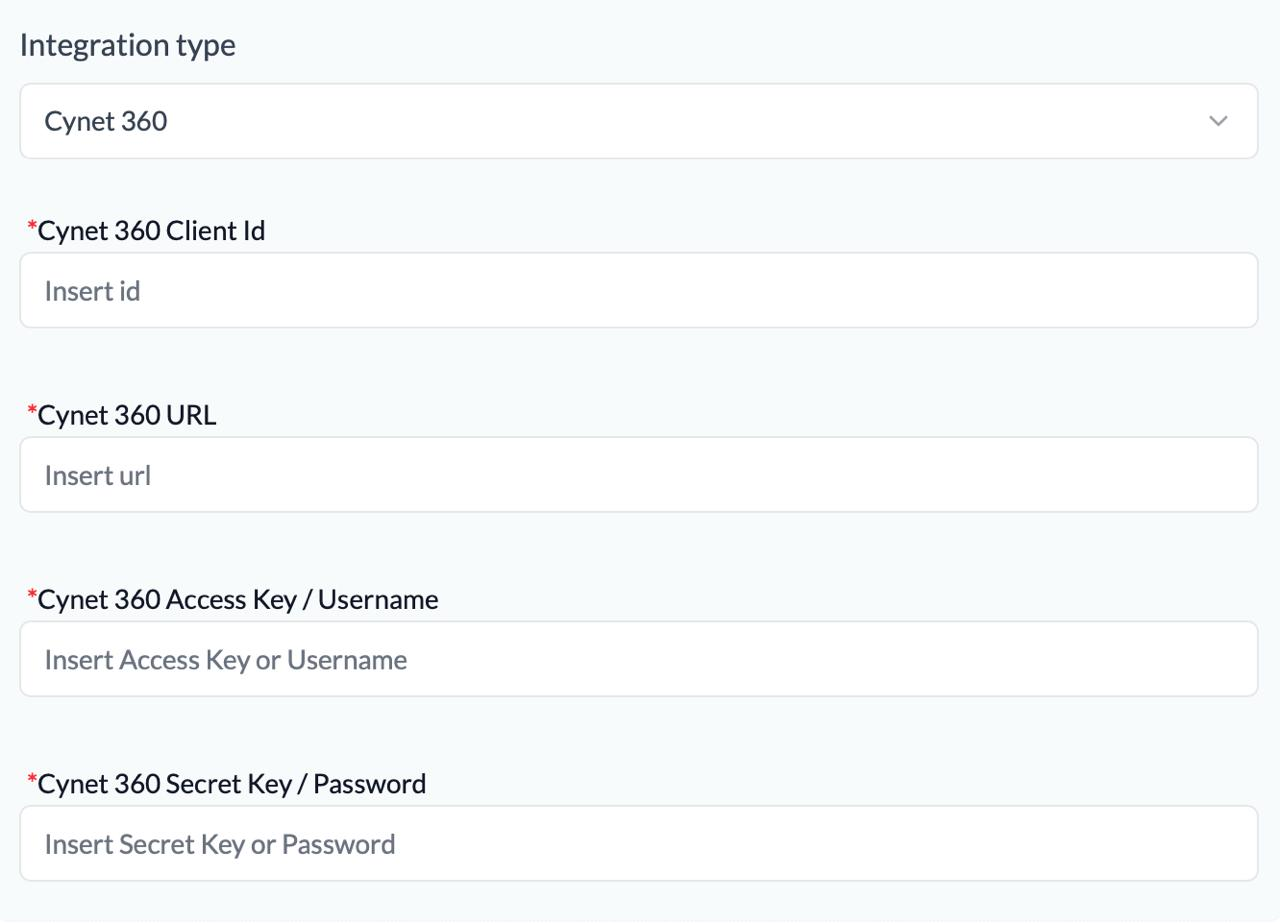
- Select Cynet 360.
- Enter the Tenant URL, Client ID, Access Key, and Secret Key.
- Click Save and then Test.
Severity Mapping
| Original Severity | RedCarbon Score |
|---|---|
| <= 1 | 0 |
| 2 | 10 |
| 3 | 40 |
| 4 | 70 |
| >= 5 | 90 |