Users
This article explains how to invite users to RedCarbon and manage their access and permissions.
Inviting Users
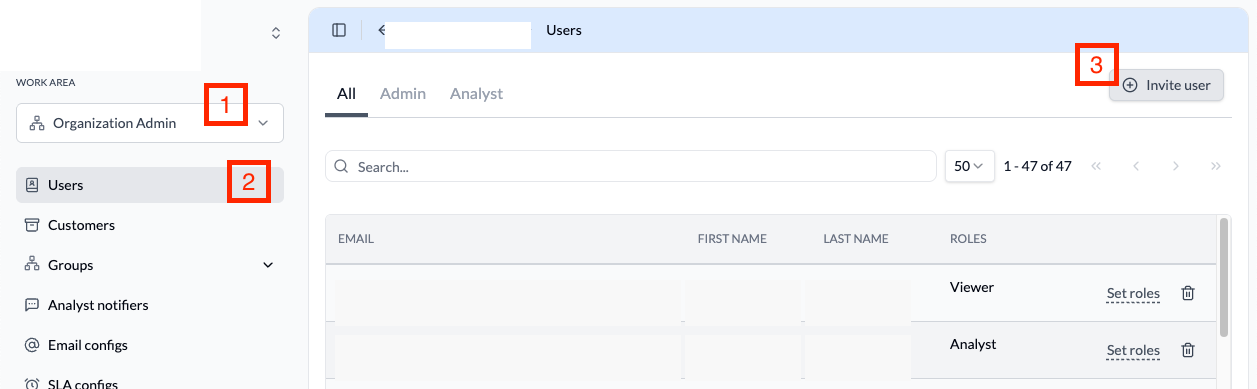
Users can be invited to RedCarbon by organization administrators. To invite a new user:
- Navigate to the
Organization Adminsection in the sidebar. - Click on the
Userstab. - Click the
Invite Userbutton in the top right corner. - Enter the user's email address.
- Select the appropriate role for the user (see Roles for role descriptions).
- Assign the user to the correct group (see Groups for group descriptions).
- Click
Send Invitation.
The invited user will receive an email with instructions to set up their account and create a password.
User Account Activation
When a user receives an invitation:
- Click the activation link in the invitation email.
- Create a secure password following the password requirements.
- Complete the account setup by providing any required profile information.
- Log in to RedCarbon using the registered email and password.
Managing Existing Users
Organization administrators can manage existing users from the Users tab:
- View Users: See all users in your organization with their roles.
- Set roles: Modify a user's role or permissions.
- Remove User: Permanently remove the user from the organization.
Best Practices
- Assign the minimum necessary role for each user's responsibilities.
- Regularly review user access and remove accounts that are no longer needed.
- Use role groups to manage permissions for teams with similar access requirements.
- Enable MFA for your user account to reduce the risk of unauthorized access. MFA can be configured from your personal account settings.