This article explains how to configure the Service Level Agreement (SLA) settings in RedCarbon and how to use them to manage your Cases policies.
SLA Configuration
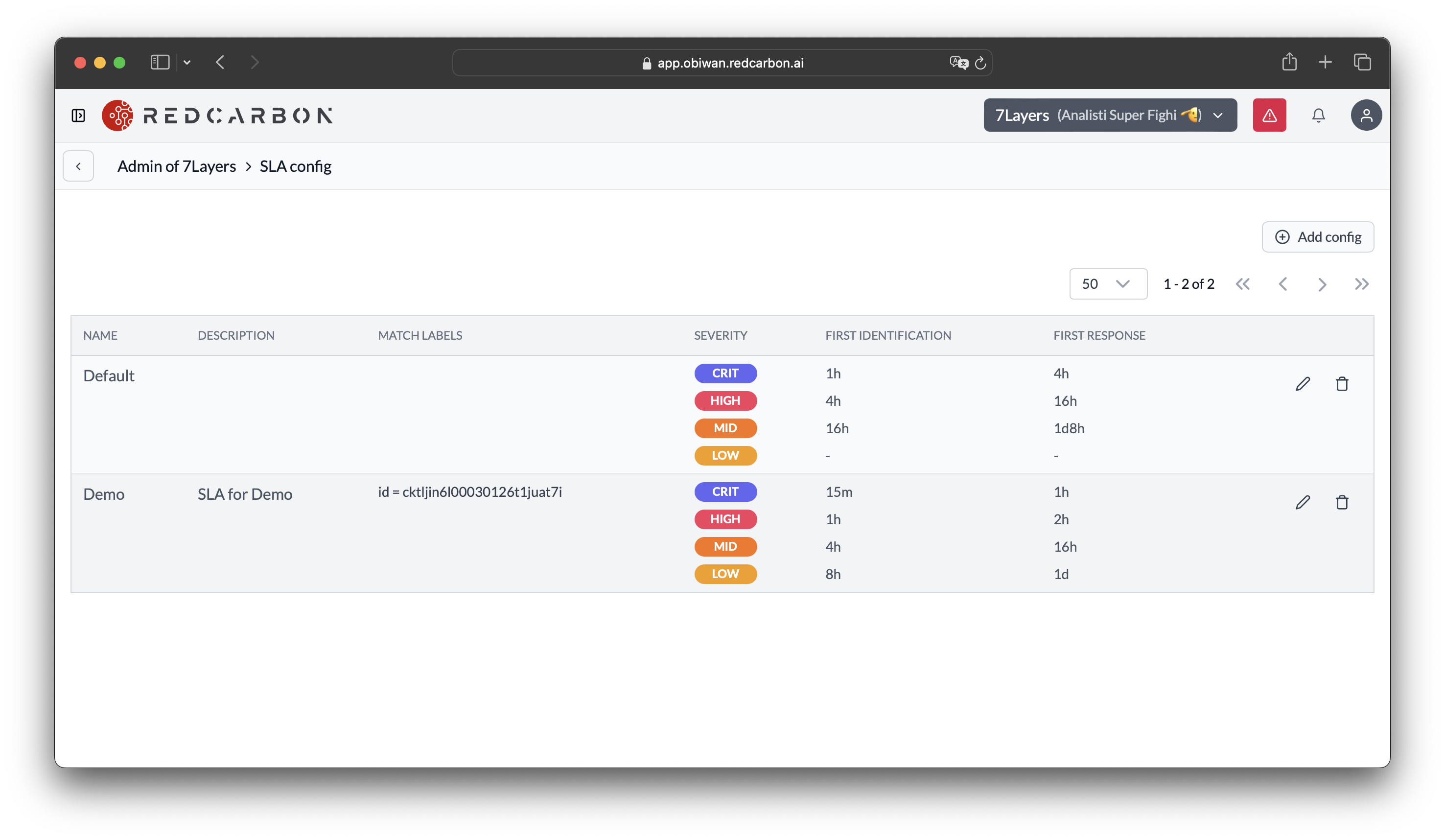
SLA configuration can be found in the Organization Admin section of RedCarbon, in the SLA Configs tab.
You can create multiple SLA configurations and assigne them to customers using the customer match labels configuration, in this way, you can have different SLA policies for different customers or groups of customers.
A SLA configuration consists in the following fields:
- Metadata: Name and description of the SLA configuration.
- SLA Policies: A matrix of SLA policies, where you can define the SLA policies for each combination of
SeverityandCase Event. - Match Labels: A set of labels that will be used to match the SLA configuration with the customer.
SLA Policies
SLA policies are defined in a matrix where the rows represent the Severity and the columns represent the Case Event. In particolar we consider two events of interests to define the SLA policies:
- First Identification: The time when the case is first identified, that coincides with the first time an human analyst work on the case.
- First Response: The time when the first response is sent to the customer or when the case is closed without the need to contect the customer.
The interections of the Severity and Case Event defines the distance in time between the creation of the case and the event of interest. The distance is defined as a string in the form <number>d<number>h<number>m, where d stands for days, h stands for hours and m stands for minutes. For example, 2d3h stands for 2 days and 3 hours.
Configure SLA Policies
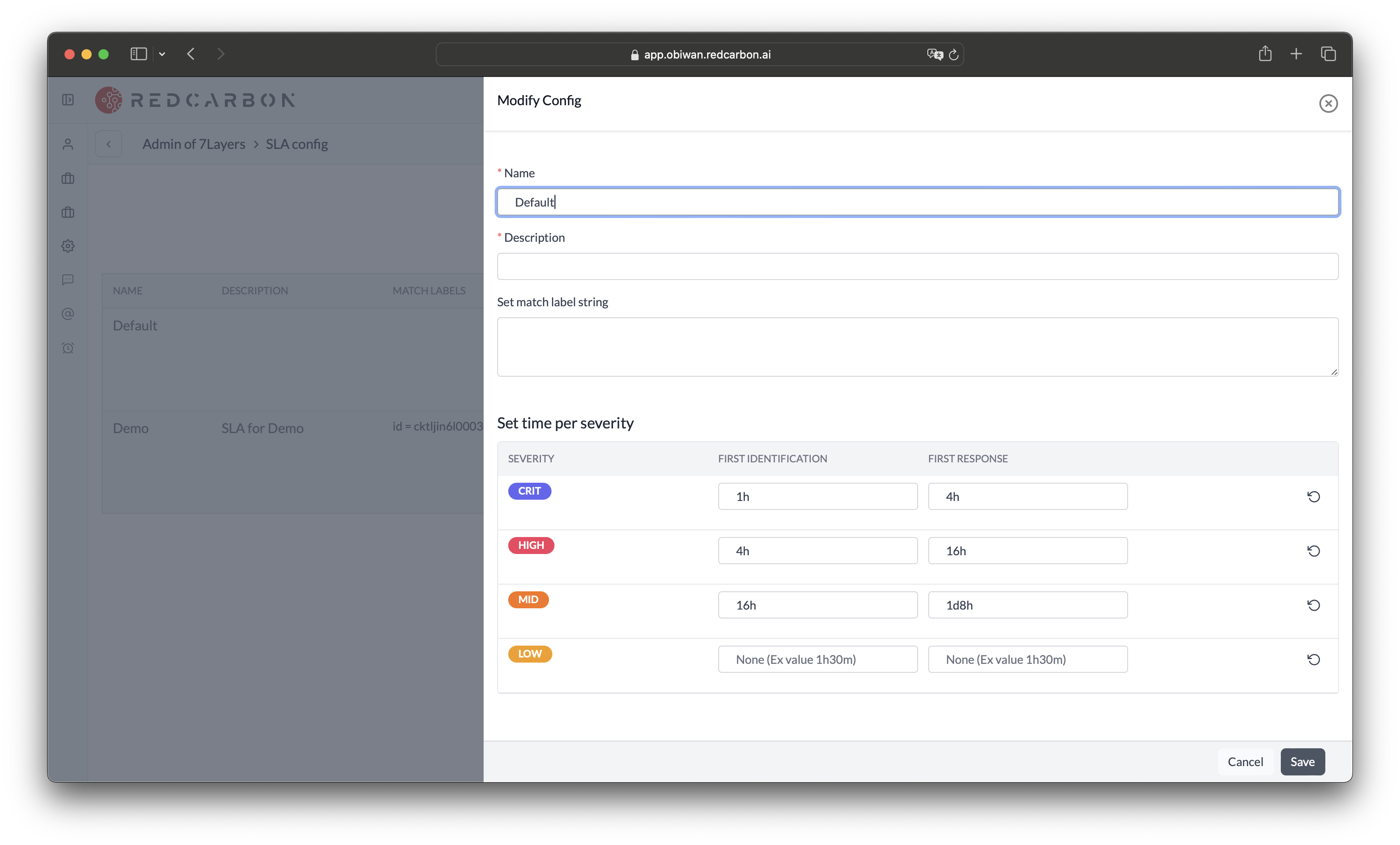
You can create or configure the SLA policies in the SLA Configs tab of the Organization Admin section of RedCarbon.
Apply SLA Policies to Case
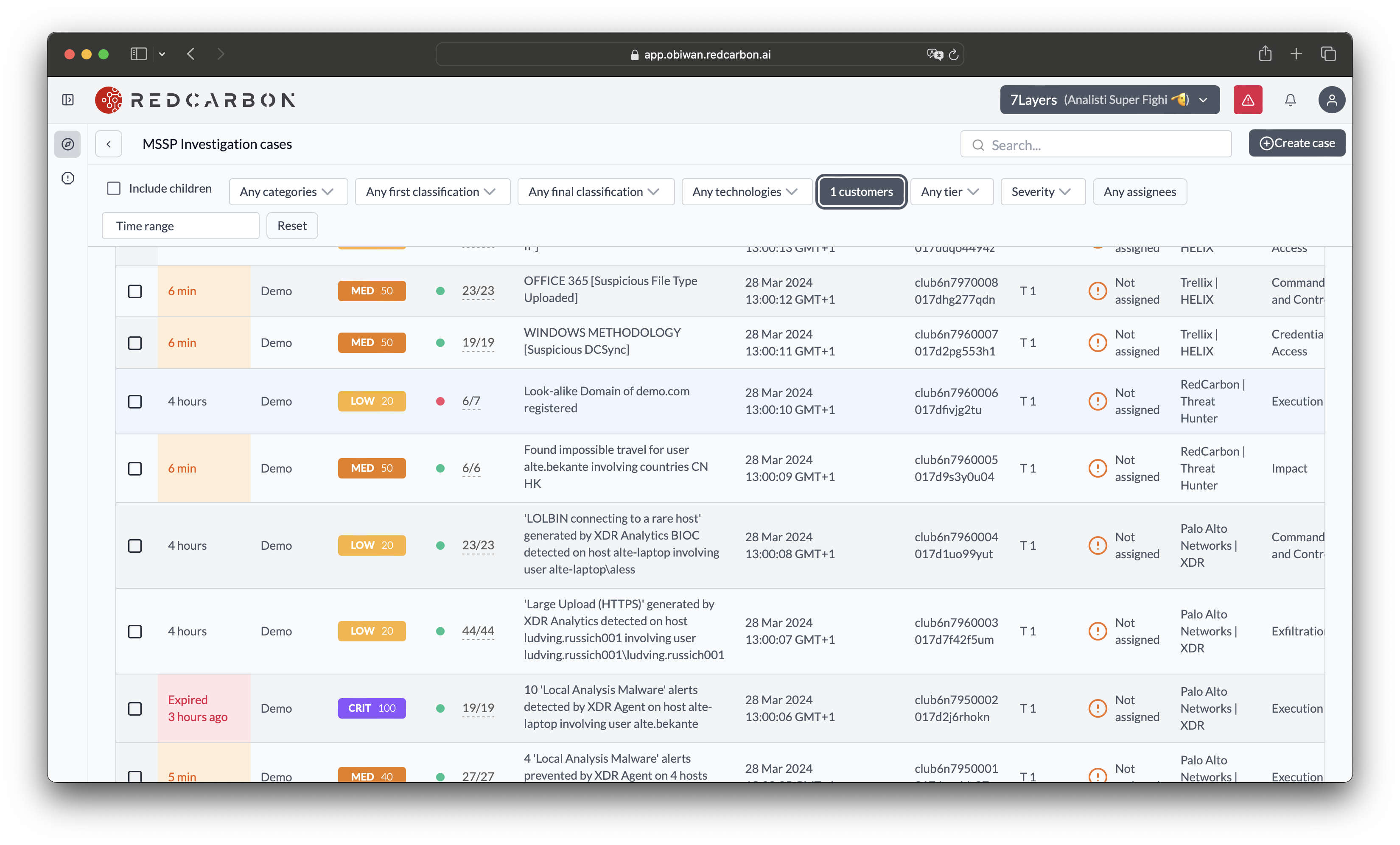
When a case is created in redcarbon, the SLA policies are applied to the case and the SLA timer starts. The SLA timer is a countdown timer that shows the time left to reach the SLA policy. The SLA timer is shown in the case details page and in the case list page.
When the SLA timer reaches the SLA policy, the case is marked as SLA Breached and the SLA timer is shown in red color.
The SLA timer is visible in the MSSP dashboard and in the case details page.
SLA Start Time
The SLA timer starts when the case is created in the platform (i.e., the Case Opened timestamp). This ensures a consistent and auditable baseline: the SLA measures response time from the moment RedCarbon is aware of the incident. For more details on how RedCarbon ingests incidents from upstream sources, see Integrations.
SLA Updates
When the case is updated, the SLA timer is recalculated and updated. The SLA timer is updated based on the last update of the case and the SLA policies. That can happen in the following cases:
- When the case severity is changed (manually by an analyst or automatically), the SLA timers are recalculated using the new severity.
- When the case status is updated by the analyst, e.g., when a Case is assigned to an analyst, the SLA timer is updated based on the
first responseconfiguration. - When the case is closed or the customer is notified, the sla timer is removed.